How to Use Audio Analysis in a Fact Checker App
Overview
TruthFinder AI 1.4.5 adds audio as a new source type. That means you can now analyze more than text and images. Spoken clips, voice-over Shorts, and TTS-heavy videos can also be turned into text and reviewed inside the app.
This is especially useful for YouTube Shorts, Instagram Reels, and TikTok, where strong claims are often delivered fast and with a confident voice. Instead of manually typing out what was said, you can record it live or import a file and move straight into analysis.
When Audio Analysis Helps Most
Short-form video often pushes its message through speech rather than on-screen text. Health advice, investment tips, and commentary on social issues can all spread as quick audio clips that sound persuasive before you have time to inspect them.
The audio analysis feature makes it easier to:
- turn spoken claims into readable text
- separate the main claim from supporting details
- check for exaggeration, certainty without evidence, and missing sources
If you want the broader reasoning behind this workflow, see Why Critical Thinking Matters. The shorter the content is, the more carefully it often needs to be checked.
Step 1: Open the Audio Source
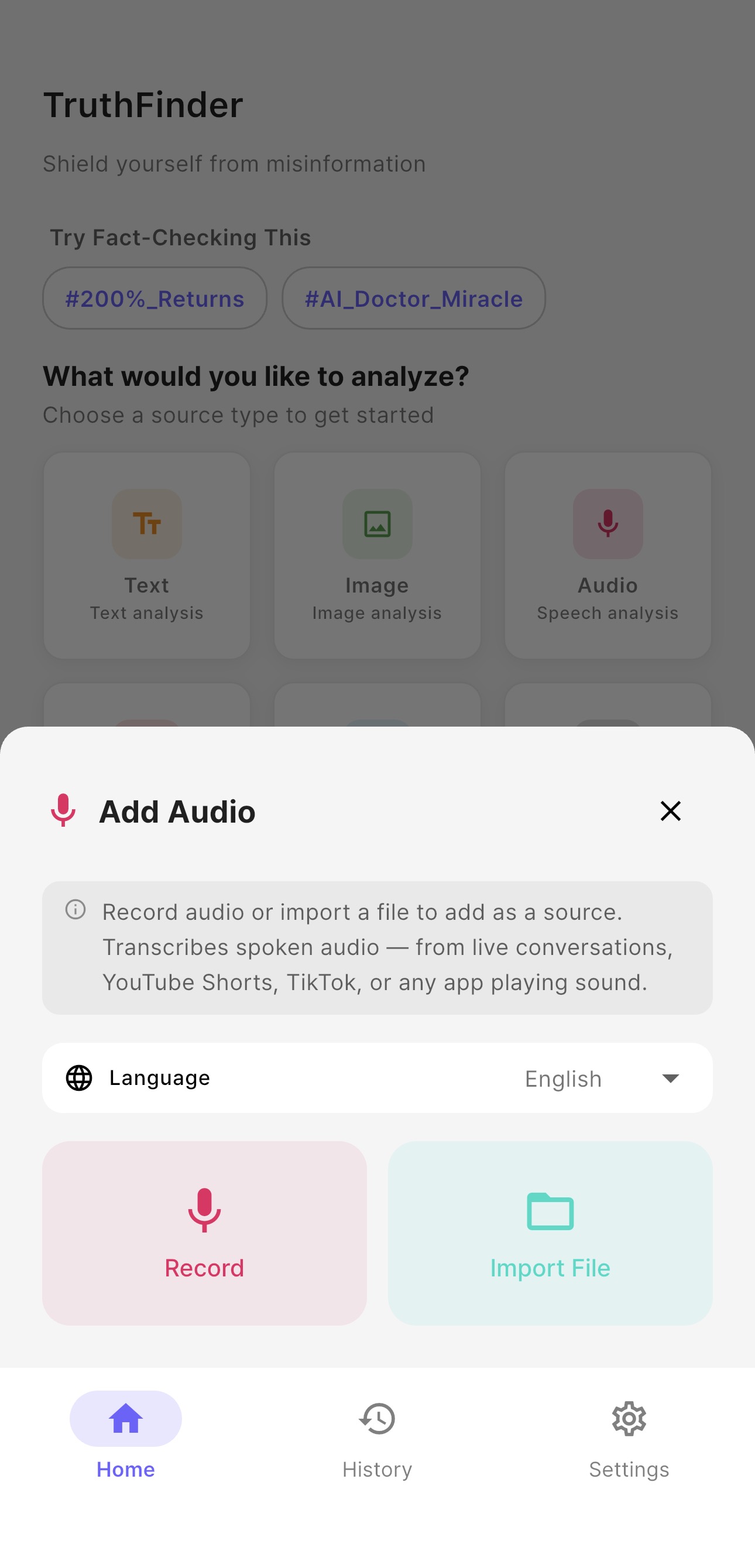
From the home screen, choose Audio as the source type. This opens the Add Audio panel, where you can add sound in two ways.
- Record: capture audio that is playing right now
- Import File: bring in an audio file you already have
You can also choose the language before starting. Set it to match the spoken audio for better transcription results.
Step 2: Record Shorts, Reels, or TikTok Audio
The fastest workflow is to tap Record and then move to the app playing the clip you want to inspect. A simple sequence looks like this.
- Start Record in TruthFinder AI.
- Switch to YouTube Shorts, Reels, TikTok, or another app playing sound.
- Play the section you want to analyze.
- Return to TruthFinder AI and stop recording.
This update is useful because it removes the slowest part of the process: manually writing down what was said.
Step 3: Import an Audio File Instead
If you already saved the clip, use Import File. This works well for interviews, voice notes, downloaded audio, or extracted sound from a video.
Once the file is added, TruthFinder AI transcribes the content and prepares it for analysis so you can inspect what is actually being claimed.
Step 4: Analyze the Transcript, Not Just the Sound
Transcription alone is not the point. The real value comes after that, when you review the text and ask what the speaker is actually asserting, what evidence is missing, and where certainty may be overstated.
That is where TruthFinder AI stands apart. It is designed to do more than capture audio. It helps you examine logic, missing support, and framing. That approach aligns with How to Make AI Think Critically.
You can use it for cases like these:
- health Shorts that sound authoritative but cite no evidence
- finance clips that imply guaranteed returns
- current-events commentary that mixes facts with interpretation
For a concrete example of how confident delivery can hide weak claims, see this misleading salt water health case.
Wrap-Up
With version 1.4.5, TruthFinder AI can now analyze audio alongside text and images. In a short-form video world, what you hear deserves the same scrutiny as what you read.
If a Reel, TikTok, or Short sounds convincing, do not stop at saving it. Transcribe it, inspect the wording, and check the claim before passing it on.